
|
Novarum DX Ltd
|
Document ID: IFU035
|
Use Method Reprocessing when you want to apply a new or updated Method configuration to existing results—without recollecting samples. This is essential for validating new reader settings, troubleshooting, or optimizing analysis as your assay or device evolves.
What is Method Reprocessing?
This guide shows you how to use the Method Reprocessing feature in the RARE Portal. You’ll learn how to select a dataset, adjust method parameters, run reprocessing, and review the new results—all while preserving traceability and data integrity.
Method Reprocessing lets you take a saved Dataset of results and re-analyze them using a different or updated Method configuration. This means you can:
-
Test the impact of new reader settings, strip definitions, or analysis parameters on your existing data.
-
Validate changes before rolling out new methods to production.
-
Troubleshoot or optimize analysis without needing to recollect samples.
-
Maintain full traceability: original results are never overwritten; new results are created and linked to the reprocessing run.
Typical use cases include method validation, QC investigations, and retrospective analysis after method updates.
Key Concepts
-
Dataset: A saved collection of results you want to reprocess.
-
Method: A configuration defining reader parameters, strip layout, and analysis logic. See the Methods for details.
-
Reprocess Data Run: A new analysis run that applies a selected Method to a Dataset, generating new results.
-
Result: The output of a scan or reprocessing run, with full metadata and traceability.
-
Lineage: Each new result stores a reference to its original source, ensuring auditability.
Method Reprocessing Management
Accessing Method Reprocessing
-
Go to Sidebar → Data Analysis → Method Reprocessing.
-
Click Create New Method Reprocessing Run.
-
Access:
Available to users with appropriate roles and paid subscription tiers. If you don’t see this option, contact your admin.
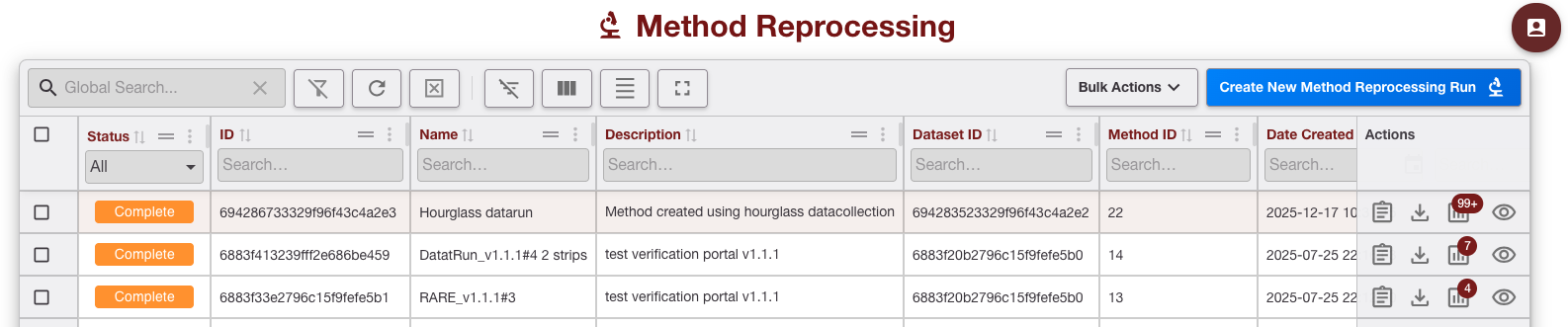
Understanding the Method Reprocessing List
The Method Reprocessing list shows all previous reprocessing runs, including:
-
Run Name and Description
-
Linked Dataset
-
Method used
-
Date created and status
-
Actions
Filtering and Sorting Method Reprocessing Runs

Filter
-
Filter by Run Name, Dataset, Method, or date range to quickly find relevant reprocessing runs.
-
If you see no results, clear or relax one or more filters.
Sort
-
Click on column headers (e.g., Date, Name, Method) to sort the list in ascending or descending order.
Actions Available
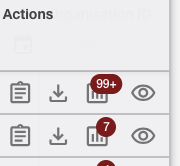
After running Method Reprocessing, you’ll see several actions available for each reprocessing run in the list. Here’s what each action does and when to use it.
-
View Report - Opens a summary report for the selected reprocessing run.
-
To quickly review key metrics, performance summaries, and any warnings or errors from the run.
-
To check overall pass/fail rates, trends, or outliers before diving into detailed results.
-
-
Download to Excel - Exports all results from the reprocessing run as an Excel (.xlsx) file.
-
To perform custom analysis, create your own charts, or share results with colleagues who prefer spreadsheets.
-
For archiving or including results in external reports.
-
-
View Successful Results - Filters and displays only the results that were successfully reprocessed (i.e., no errors or warnings).
-
To focus on valid, interpretable results for downstream analysis or reporting.
-
To quickly exclude failed or incomplete results from your review.
-
-
View Data Run - Opens the detailed Data Run page for the selected reprocessing run.
-
To see the full lineage, including original dataset, method configuration, and all individual result details.
-
To access logs, processing history, and any associated files or images.
-
Creating a Method Reprocessing Run
You can create a new Method from the Method Management list.
Creating a Method Reprocessing run is a guided workflow that takes you from naming your run, through choosing the data you want to re‑analyse, to selecting and fine‑tuning the Method that will be applied.
You’ll start by giving the run a clear, descriptive name so it can be found and audited later. You then pick an existing Dataset of results, and RARE will check that everything in it is compatible with the Method you want to use.
Finally, you load the Method configuration, make any required adjustments, and launch the run so that new results are generated alongside the originals, without changing the original data.
Prerequisites
Before you begin, make sure you have:
-
A completed Dataset: The dataset you want to reprocess must already exist in the system, with all results finalized.
-
A compatible Housing selected in the Method: The Method you plan to use must have a Housing that is compatible with all results in the chosen Dataset.
-
An appropriate Phone / Optics configuration in the Method: The Method must use a Phone / Camera configuration that matches how the original results were captured (or an equivalent validated configuration).
-
Appropriate permissions: You must have Analyst or Admin access to create and run interpreter reprocessing.
-
Consistent assay types: All results in your chosen dataset must be compatible with the Housing you intend to apply (the system will check this for you).
See Configurations
Step 1 – Describe Datarun
Enter a unique Run Name and Description for traceability.

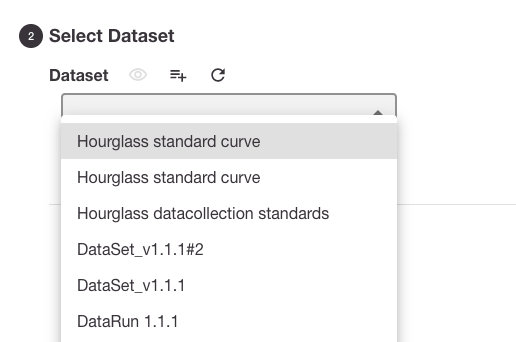
Step 2 – Select a Dataset
-
Choose from your list of saved Datasets.
-
The system checks that all results in the Dataset share common parameters (e.g., Housing). If not, you’ll be prompted to resolve any conflicts.
Step 3 – Load and Adjust Method Configuration
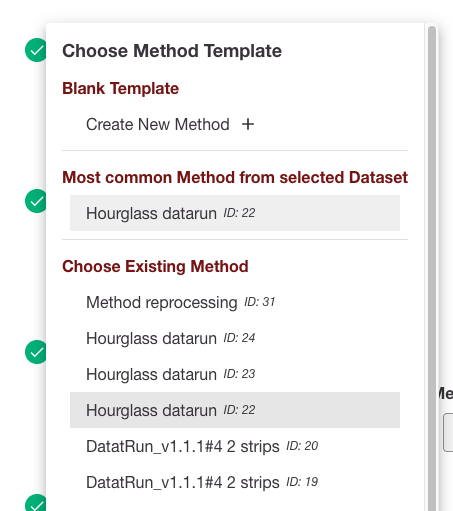
-
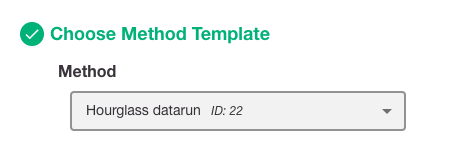
The most common Method used in the Dataset is loaded by default.
-
You can override this by selecting another Method (filtered by compatible Housing).
-
Adjust Method parameters as needed (e.g., strip selection, region of interest, baseline positions, control corrections, reader settings).
-
For details on editing Method configuration, see the Configurations → Methods .
Step 3 – Save and Run
Use Save and Run when you’re happy with both your Dataset selection and Method configuration and are ready to generate new results.
-
Click Save and Run to start reprocessing.
-
The system processes each result in the Dataset using the selected Method configuration.
The system will take each result in the Dataset, apply the selected Method exactly as configured, and create a new set of results linked back to the original data.
Nothing is overwritten: original results stay unchanged, and the new results are clearly associated with this Method Reprocessing run for audit and comparison.
Viewing an Existing Method Reprocessing Run
-
Select a run from the Method Reprocessing list to view details.
-
Review new results, compare to original outputs, and check full lineage.
-
Export results or generate reports as needed.
Enabling or Disabling a Method
-
Only Methods that are Enabled can be selected for reprocessing.
-
To enable or disable a Method, go to Configurations → Methods and use the Actions menu.
After You’ve Done This
-
Review Outputs: Each item in the Dataset generates a new Result, linked to the current Reprocess Data Run.
Original results remain unchanged; new results inherit key metadata and reference their source. -
Traceability: Full lineage is preserved—every new result points back to its original.
-
View and Export: Use the Datarun Management page to view, export, or further analyze reprocessed results. Reports and performance metrics can be generated using the new results.