
|
Novarum DX Ltd
|
Document ID: IFU034
|
Use Dataset Management when you want to organize, save, and reuse groups of results for reprocessing, analysis, or reporting—without having to recollect or manually select results each time.
What is Dataset Management?
This page explains how to use Dataset Management in the RARE web portal to organise, save, and reuse groups of results for reprocessing, analysis, or reporting. You’ll learn how to create, edit, and manage Datasets, maintain traceability, and use Datasets as inputs for reprocessing runs—supporting robust QC, validation, and regulatory workflows.
Dataset Management lets you:
-
Save curated sets of results as Datasets for future reprocessing or analysis.
-
Filter, sort, and search your Datasets for easy access.
-
View and edit Dataset details, including which results are included.
-
Use Datasets as input for reprocessing runs (e.g., applying new Method or Interpreter configurations).
-
Maintain full traceability—Datasets are versioned and auditable, supporting regulatory and QC requirements.
Typical use cases include method validation, batch analysis, troubleshooting, and performance reporting.
Dataset Management
Accessing Dataset Management
-
Go to Sidebar → Data Analysis → Dataset Management in the RARE web portal.
-
Available to users with appropriate roles and subscription tiers. (Contact your admin if you don’t see this option.)
Understanding the Dataset List
-
The Dataset Management page shows all your saved Datasets.
-
Columns include: ID, Name, Description, Date Created, Status, Number of Results, and Actions.
-
Each row represents a single Dataset, with quick access to view, edit, or change status.
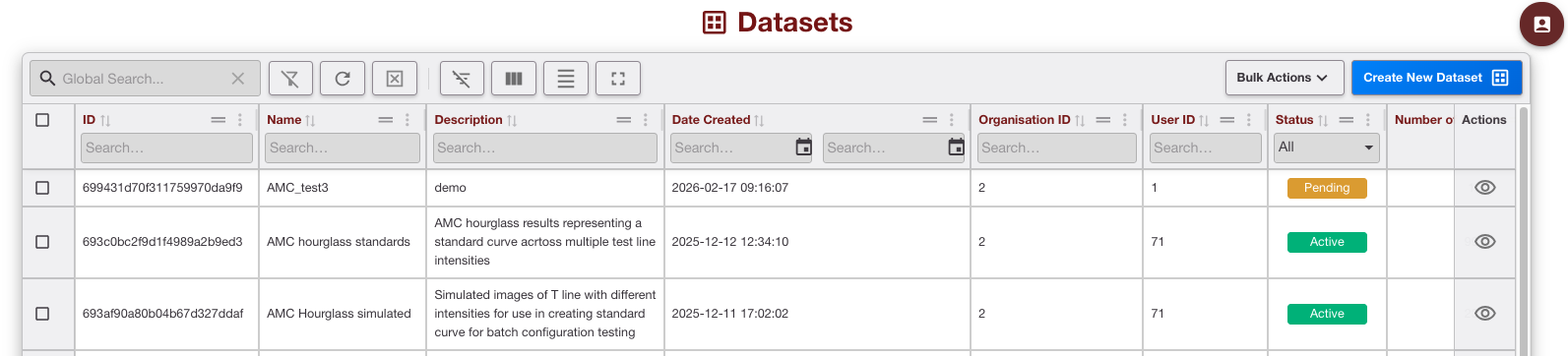
Dataset Management screen
Filtering and Sorting Datasets
Filter
-
Use filters to narrow Datasets by date, status (active/inactive), or number of results.
-
Metadata filters help you quickly find Datasets relevant to your current analysis or QC task.
Sort
-
Sort Datasets by creation date, name, or number of results to bring the most relevant sets to the top.
Actions Available
-
View/Edit: See included results, update descriptions, or add/remove results.
-
Activate/Deactivate: Control whether a Dataset is available for reprocessing.
Creating a New Dataset
-
Click Create New Dataset starts the Dataset creation wizard.
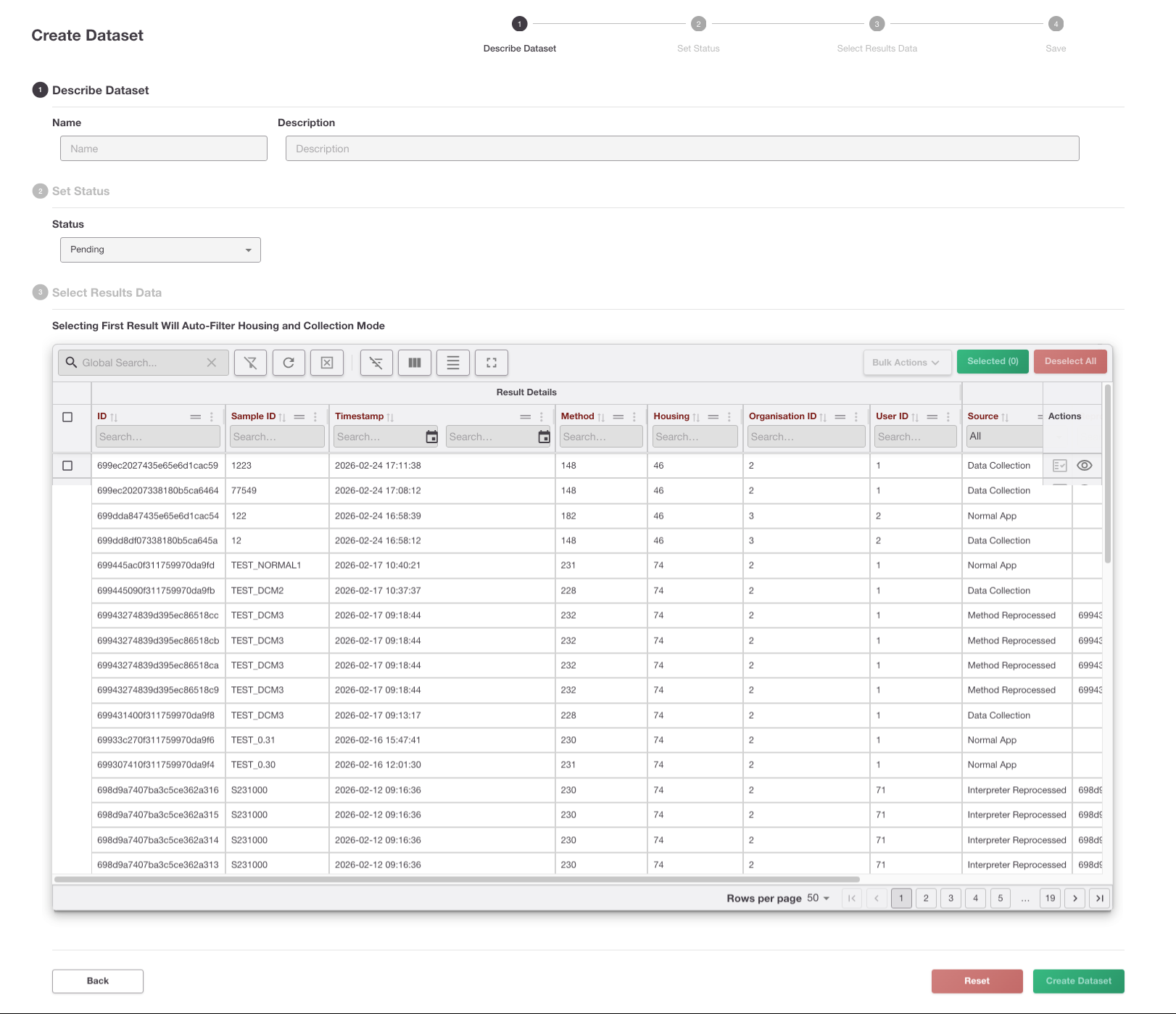
Blank Dataset page -
Describe Dataset
-
Enter a clear, descriptive name and optional description.
-
Good naming helps with future searches and audit trails.
-
-
Set Status
-
Choose whether the Dataset is active (available for reprocessing) or inactive (archived).
-
-
Select Results Data
-
Use filters and bulk selection to choose results to include.
-
You can select by date, method, batch, or other metadata.
-
-
Save
-
Review your selections and confirm to save the Dataset.
-
The Dataset is now available for future reprocessing or analysis.
-
Tips
-
Naming: Use clear, descriptive names for Datasets to make them easy to find later.
-
Versioning: If you update a Dataset, consider saving it as a new version for traceability.
-
Filtering: Use filters to quickly find Datasets by date, status, or number of results.
-
Bulk Selection: When creating a Dataset, use metadata filters to select large groups of results efficiently.
-
Start Small: For new workflows, test with a small Dataset before scaling up.
Viewing and Editing an Existing Dataset
-
Click the View/Edit action for any Dataset.
-
Review the list of included results and their details.
-
Update the description, add or remove results, or change the status as needed.
-
All changes are versioned and logged for traceability.
Making Changes
-
Edits to a Dataset (e.g., adding/removing results, updating metadata) create a new version.
-
Previous versions remain accessible for audit and reproducibility.
-
You cannot overwrite or delete original results from within a Dataset—data integrity is preserved.
Enabling or Disabling a Dataset
-
Use the Activate/Deactivate action to control Dataset availability for reprocessing.
-
Deactivated Datasets remain in the system for audit but cannot be selected as input for new runs.
Permissions and Visibility
-
What you can see and do depends on your user role and subscription.
-
Only users with appropriate permissions can create, edit, or delete Datasets.
-
All actions are logged in the audit trail for compliance.
After You’ve Done This
-
Your Dataset is saved and available for future reprocessing or analysis.
-
All included results are traceable; changes are logged for audit purposes.
-
You can use the Dataset as input for method validation, QC checks, or performance reporting.
-
Dataset lineage and version history are preserved, supporting regulatory submissions and internal audits.