
|
Novarum DX Ltd
|
Document ID: IFU026
|
Getting Started with RARE
This page helps you take your first steps with the RARE platform: creating an account, activating it, logging in to the web portal, installing the mobile app, and logging in on your phone.
Web Portal
Create your account
-
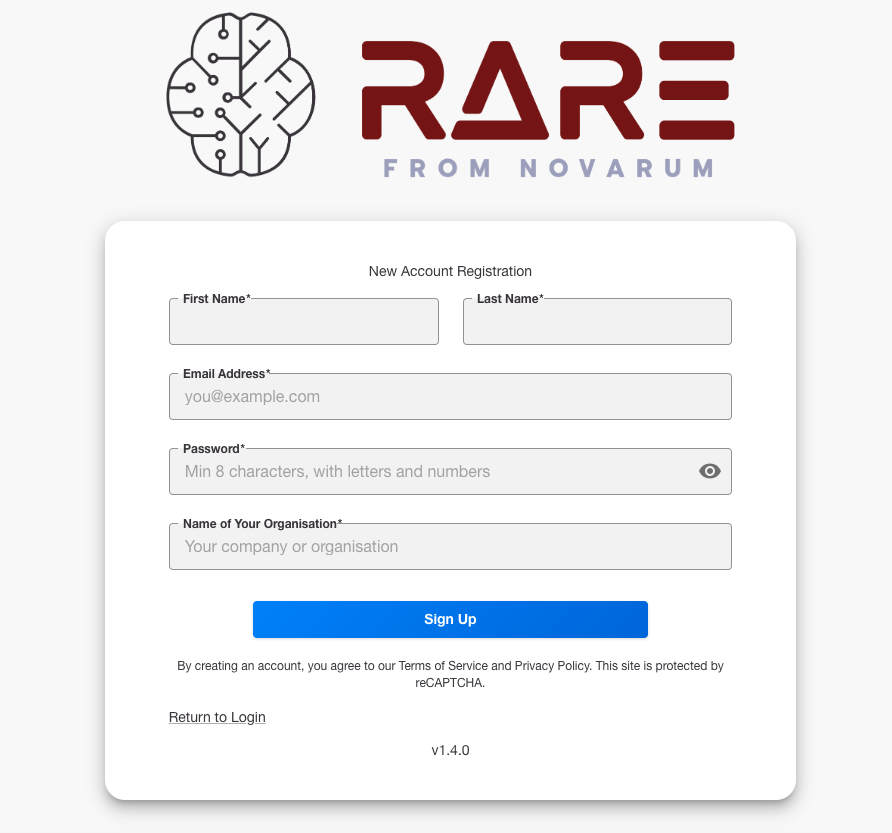
Enter your details as requested.
-
Submit the form to create your organisation and user account.
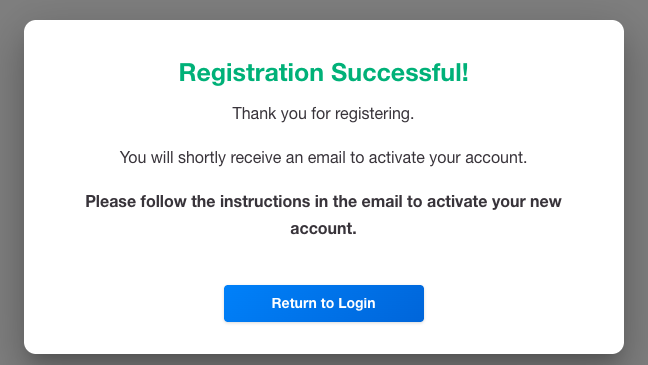
After you submit, you’ll see a confirmation message explaining that you need to activate your account by email before you can log in.
Activate your account
-
Check your email inbox (and spam/junk folder if needed).
-
Look for an email inviting you to activate your new RARE account, sent from:
admin@novarumdx.com -
Open the email and:
-
Click the activation button, or
-
Use the direct link if the button does not work.
-
The email also tells you how long the activation link will remain valid. If the link has expired, you may need to restart the signup process or request a new activation.
Your account is ready to use once activation is complete.
Log in to the portal
-
Go to:
https://rare.software/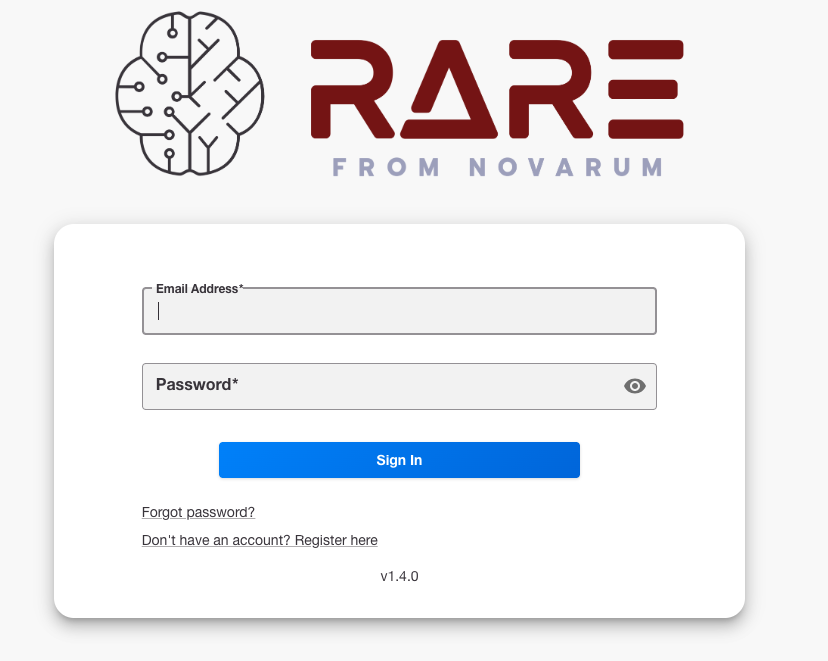
-
Enter your email and password.
-
Select Log in.
If your account is not yet activated, you will not be able to log in. Make sure you have completed the email activation step first.
Role and subscription
What you see and can do in the portal depends on:
-
Your role (for example: Organisation Admin, Standard User).
-
Your organisation’s subscription tier (for example: Free or Paid).
These determine which menus, configuration options, and data you can access.
Mobile App
Install the app
You need a valid, activated portal account before you can use the mobile app.
On your smartphone:
-
iOS (Apple):
Open the App Store and install the RARE app
-
Android:
Open Google Play and install the RARE app
Once installed, ensure your device has a working camera and internet connection so it can capture and upload results.
Log in to the app
-
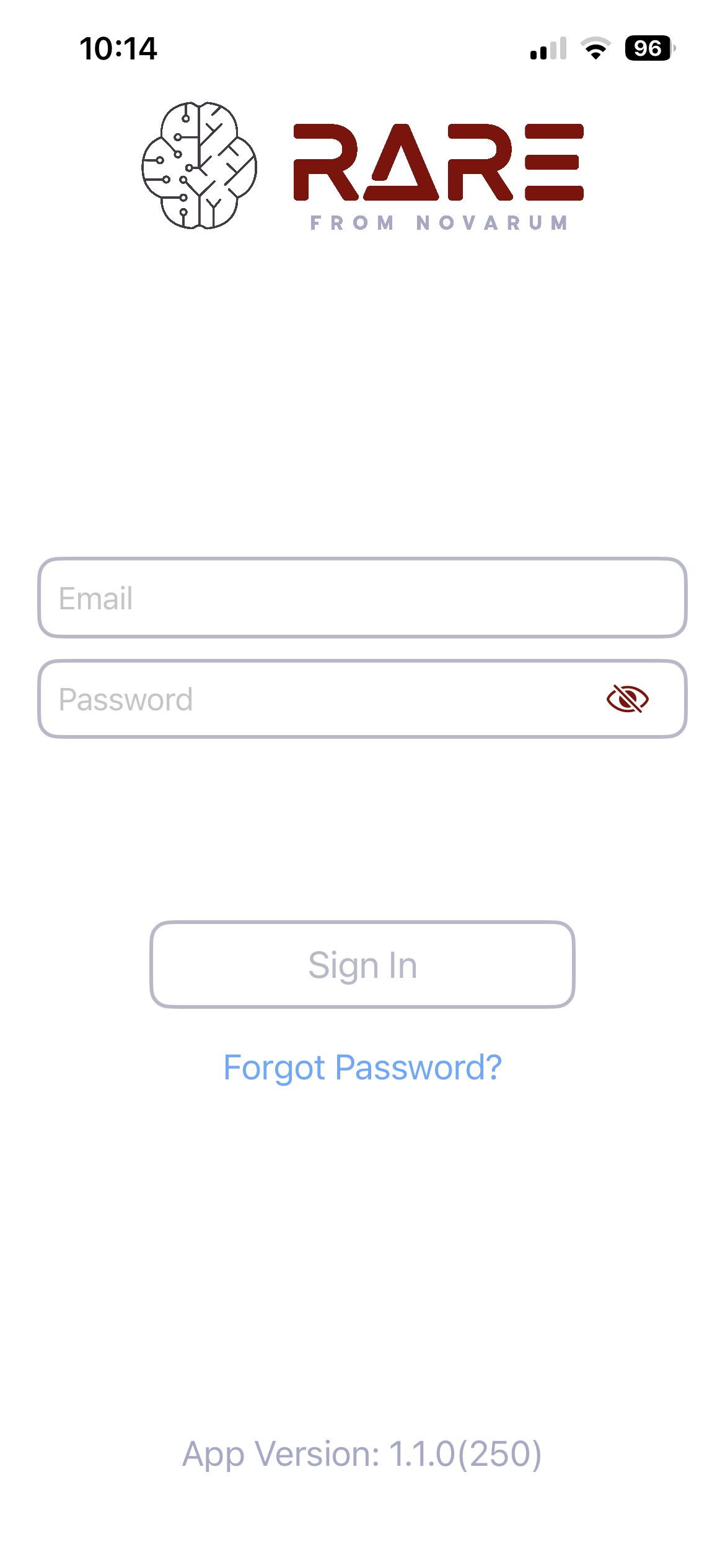
Open the RARE app on your phone.
-
Enter the same email and password you use for the web portal.
-
Select Log in.
You must have:
-
A registered account created via the web portal, and
-
Successfully activated that account via the activation email.
After login, the app will synchronise with the portal to retrieve the correct configuration for your organisation and user.
What to do next
Once you can log in to the web portal and the mobile app, you’re ready for your first scan. This section gives you a simple checklist to follow.
First-time portal checklist
After logging in at https://rare.software/:
-
Confirm your organisation
-
Check the organisation name shown in the portal matches the group you expect to work in.
-
If it is wrong or missing, contact your local RARE administrator.
-
-
Check your profile
-
Make sure your email address is correct.
-
Update your display name if needed so colleagues can recognise you.
-
-
Find the documentation
-
In the portal sidebar, look for a link to documentation or help.
-
This takes you to the main RARE documentation site: https://docs.rare.software/
-
-
Understand your role and subscription
-
Ask your local administrator which role you have (for example, Admin, Organisation Admin, Standard User).
-
Check which subscription tier your organisation is on (for example, Free or Paid).
-
These determine which menus, configuration pages and data you can see.
-
Troubleshooting