
|
Novarum DX Ltd
|
Document ID: IFU039
|
Use Interpreter Reprocessing when you want to apply updated batch or classifier configurations to an existing dataset, without recollecting samples. This is essential for calibration updates, method validation, or QC investigations.
What is Interpreter Reprocessing?
This guide shows you how to create and manage Interpreter Reprocessing runs in the RARE portal. Interpreter Reprocessing lets you re-analyze stored results using new or updated batch (quantitative) or classifier (qualitative) configurations, generating a new set of results while preserving full traceability to the originals.
Interpreter Reprocessing is ideal when you need to:
-
Apply new calibration curves or threshold logic to existing data.
-
Validate the impact of configuration changes on historical results.
-
Support regulatory or QC investigations without altering original records.
Interpreter Reprocessing Management
Accessing Interpreter Reprocessing
-
Go to Data Analysis > Interpreter Reprocessing in the RARE web portal.
-
You need Analyst or Admin permissions to create or manage reprocessing runs.
-
What you see and can do may depend on your role and subscription.
Understanding the Interpreter Reprocessing List
The Interpreter Reprocessing list shows all previous and in-progress reprocessing runs, including:
-
Run name and description
-
Date created and operator
-
Linked dataset
-
Batch and classifier configurations used
-
Status (e.g., Completed, In Progress, Failed)

Filtering and Sorting Interpreter Reprocessing Runs
Filter
-
Filter runs by status, operator, dataset, or date range.
-
Use the search bar to find runs by name or description.
Sort
-
Sort runs by creation date, name, or status for quick access.
Actions Available
-
View details: See configuration, results, and audit trail for any run.
-
Export results: Download reprocessed results with full metadata.
Create a New Interpreter Reprocessing Run
Interpreter Reprocessing lets you apply new batch or classifier logic to existing datasets, generating a new set of results for review and comparison. This is especially useful for calibration updates, method validation, or retrospective QC checks—without ever altering your original data.
Prerequisites
Before you begin, make sure you have:
-
A completed Dataset: The dataset you want to reprocess must already exist in the system, with all results finalized.
-
At least one Batch Configuration: For quantitative reprocessing, you’ll need a saved batch configuration (calibration curve/model) that matches the assay type of your dataset.
-
At least one Classifier Configuration: For qualitative reprocessing, ensure you have a classifier configuration (thresholds/rules) available for your assay.
-
Appropriate permissions: You must have Analyst or Admin access to create and run interpreter reprocessing.
-
Consistent assay types: All results in your chosen dataset must be compatible with the batch/classifier you intend to apply (the system will check this for you).
See Configurations
Step 1 - Describe the Run
Start by giving your reprocessing run a clear, descriptive name and a short explanation of its purpose. This helps with traceability and future audits.
-
Enter a clear Run Name (e.g., "QC Panel Reprocess Mar 2026").
-
Add a Description to explain the purpose or context.

Use consistent naming conventions to make it easy to find and compare runs later.
Step 2 - Select Dataset
Pick the dataset you want to reprocess from the dropdown list. Only datasets that are eligible for interpreter reprocessing will appear.
-
Choose the dataset you want to reprocess from the dropdown. If you’re testing a new configuration, consider starting with a small or representative dataset.
-
The system will check that all results in your dataset are compatible with the batch/classifier you select in the next step.
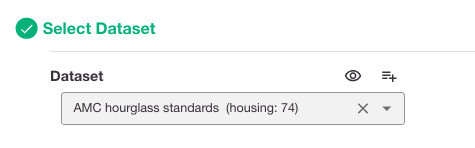
Start with a small dataset to validate new configurations before scaling up.
Step 3 - Apply Batch (Quantitative) / Apply Classifier (Qualitative)
Select Batch Configuration
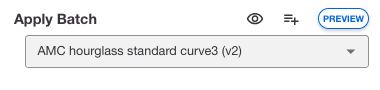
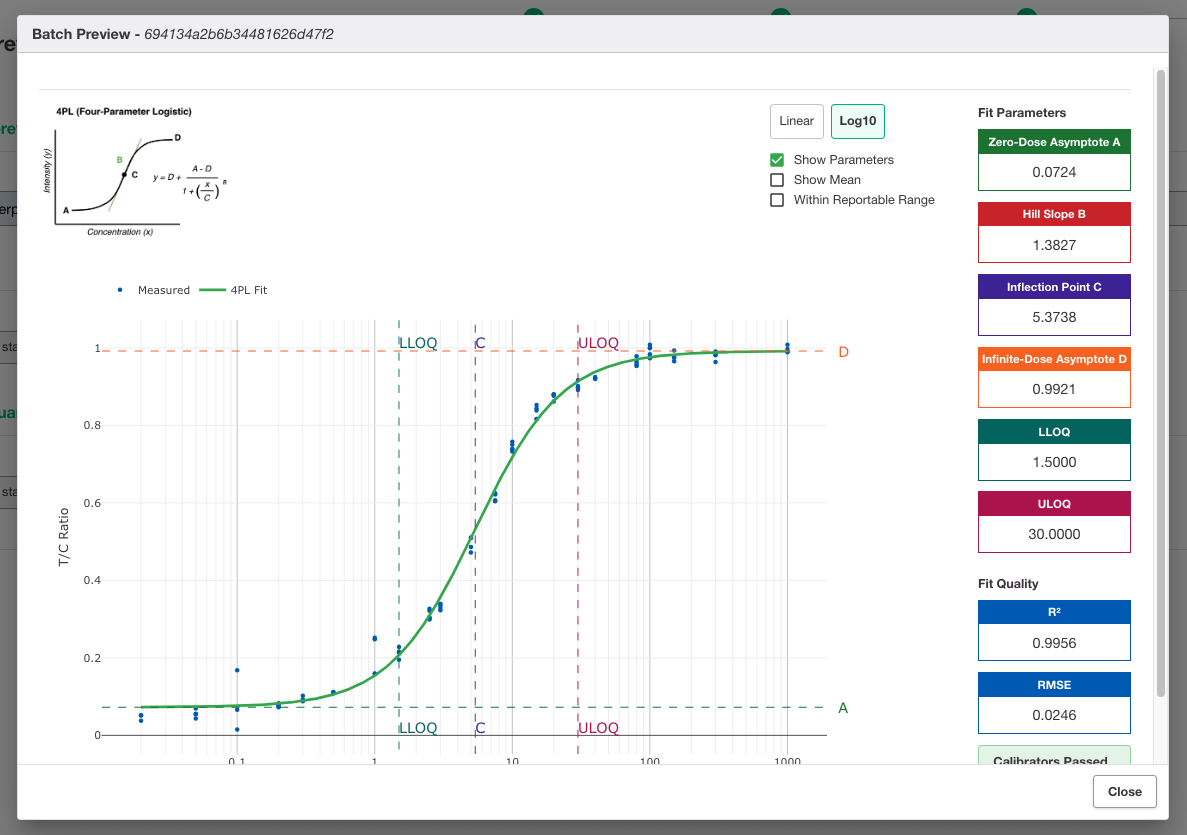
If you want to update quantitative values (e.g., concentrations), select a batch configuration. This applies the chosen calibration model to all results in your dataset.
-
Pick a batch configuration to apply updated calibration or quantitative models.
-
Only valid batch configs for the dataset’s assay type are shown.
-
The system uses the selected model (e.g., 4PL, 5PL, Linear) to recalculate quantitative values.
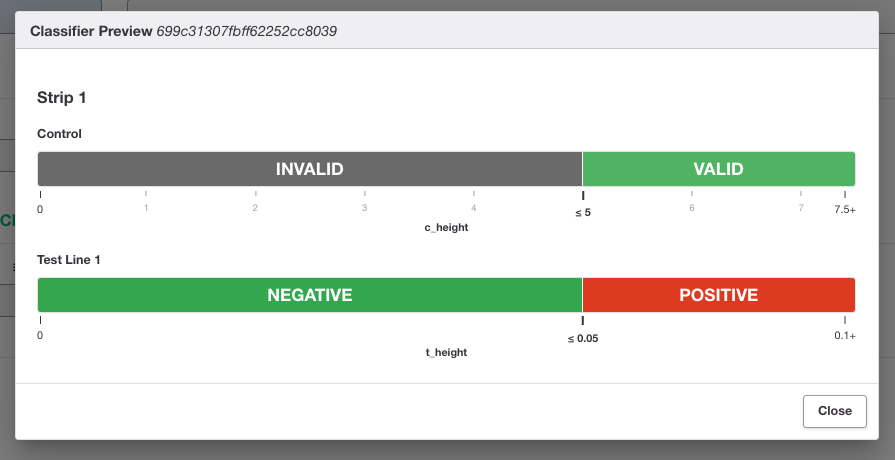
Select Classifier Configuration
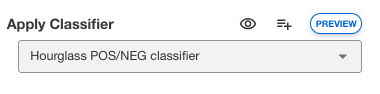
If you want to update qualitative interpretations (e.g., Positive/Negative), select a classifier configuration.
-
Choose a classifier configuration to apply new qualitative thresholds or logic.
-
Only compatible classifiers are listed.
-
The system applies the new thresholds or logic to generate updated interpretation labels for each result.
Step 4 - Finalise and Save
-
Review all your selections in the summary screen. Double-check the run name, dataset, batch/classifier, and any warnings or compatibility notes.
-
When you’re ready, click Save and Run.
-
The system will create a new set of results, each linked to its original, and log all actions for traceability.
-
After You’ve Done This
-
The system creates a new result for each item in the dataset, inheriting key metadata (sample ID, ground truth, etc.) and linking back to the original result.
-
All actions are logged with operator, timestamp, and configuration details for auditability.
-
You can view, filter, and export the new results. The original results remain unchanged.
-
Any updates to ground truth at the group level are automatically reflected in all linked reprocessed results.